Stop Copying Data Between Your Tools

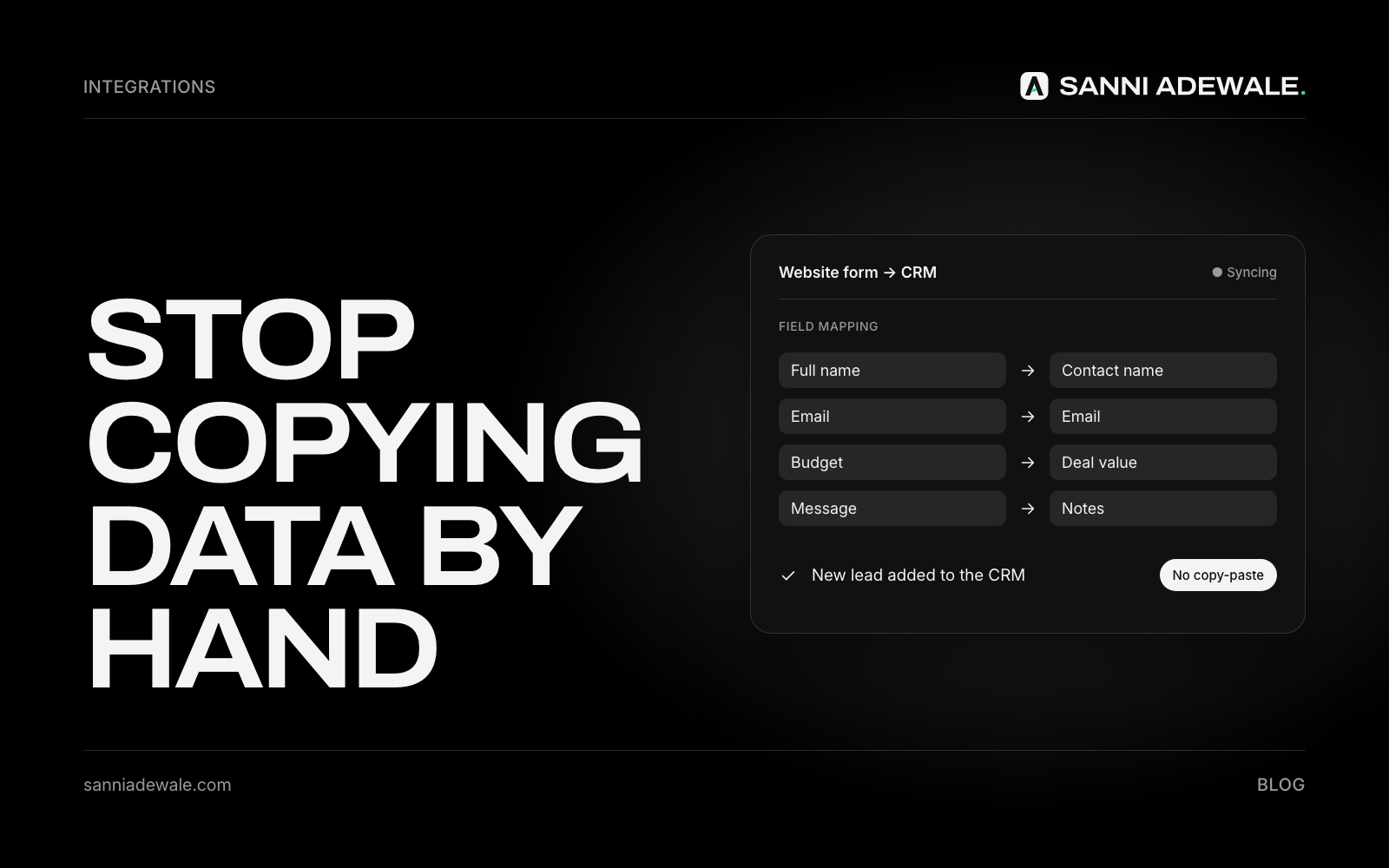
Short answer: To stop copying data between tools, pick one system as the home for each type of data, connect your other tools to it with native integrations or an automation tool like Zapier, Make or n8n, and use AI to pull details out of emails, PDFs and forms. A person checks anything the AI isn't sure about.
The problem: the same details, typed four times
A new client fills in your form. Someone copies their details into a spreadsheet, then the CRM, then the invoicing tool, then the project board. Each copy takes a few minutes and gives a new chance to mistype an email address or miss a field.
It adds up. In a Zapier survey of 1,000 workers at small and medium businesses, 76% said they spend one to three hours a day "simply moving data from one place to another." That's time your team could spend with customers.
Three ways to stop copying
Native integrations: many tools connect directly. For example, HubSpot connects with QuickBooks Online and Xero to sync contacts and invoices. Always check for these first.
Automation tools: Zapier, Make and n8n connect apps that don't talk to each other: "when a form is submitted, create a CRM contact and a project."
AI extraction: when data arrives as messy text (an email enquiry, a PDF order, a scanned form), AI can read it and pull out the fields you need. AI by Zapier, for example, can analyse text and return structured data for the next step.
How to set it up: 7 steps
1. Map where your data goes
Draw one line per type of data: leads, clients, jobs, invoices. Write each tool it passes through and who copies it. The steps where someone retypes the same thing are your targets.
2. Choose one source of truth for each type
Decide which tool "owns" each type of data, usually the CRM for clients and the accounting tool for invoices. Other tools read from it rather than keeping their own copies. This one decision removes most of the mess.
3. Use native integrations first
Check your main tools' integration pages. A built-in connection is usually more reliable and cheaper than a custom one, and it's maintained by the vendor.
4. Connect the gaps with an automation tool
For anything native integrations don't cover, build a simple automation: one trigger and one or two actions. Name each automation clearly and keep a list of what exists and who owns it.
5. Add AI where the data is messy
Use AI to extract names, companies, dates, amounts and requests from emails, PDFs and free-text form fields. Ask it to return the same fields every time, and to say when a field is missing rather than guessing.
6. Add a check step
AI extraction can make mistakes. For anything involving money or customer records, send unclear or low-confidence results to a person to approve before they're saved. Check a sample of automated records weekly at first.
7. Collect only what you need
Every extra copy of personal data is another place to correct, delete and secure. The UK ICO's data minimisation principle says personal data should be "adequate, relevant and limited to what is necessary." Syncing from one source of truth helps you meet it.
Checklist
☐ Data flows mapped for leads, clients, jobs and invoices
☐ One source of truth chosen for each type of data
☐ Native integrations checked and switched on
☐ Remaining gaps connected with an automation tool
☐ AI extraction set up for emails, PDFs or free-text forms
☐ Unclear AI results go to a person for approval
☐ Automations listed with an owner each
☐ Only the fields you need are copied
☐ Weekly spot check of automated records for the first month
Which approach fits?
Approach | Example | Best for | Watch out for |
|---|---|---|---|
Native integration | HubSpot ↔ QuickBooks or Xero | Two main tools that already connect | Limited to the fields the vendor supports |
No-code automation | Zapier, Make | Connecting several apps quickly without code | Costs grow with volume; can get messy without naming and ownership |
Custom or self-hosted workflow | n8n, custom code | Complex rules, high volume or strict data control | Needs a developer to build and maintain |
AI extraction step | AI by Zapier, or an AI model in your workflow | Emails, PDFs and free-text forms | Needs a check step for important fields |
Where to start
Start with the copy that happens most often, usually new leads or new clients. If leads are your biggest leak, pair this with Follow up every lead automatically. Agencies can go further with automated client onboarding, and there are more ideas in 12 everyday problems a simple AI workflow can fix.
FAQ
How do I automate data entry for a small business?
Pick one tool as the home for each type of data, turn on native integrations between your main tools, and use an automation tool like Zapier, Make or n8n for the gaps. Add AI to read emails and documents where the data is messy.
Can AI extract data from emails and PDFs?
Yes. AI can read emails, PDFs and form text and return structured fields such as name, company, date and amount. Ask it to flag missing fields and have a person check anything important.
What is a single source of truth?
It's the one system that holds the master copy of a type of data, such as your CRM for client details. Other tools sync from it, so you update information once instead of in every tool.
Is Zapier or Make better for connecting my apps?
Both connect thousands of apps without code. The right choice depends on your apps, how complex your workflows are and your budget, so compare their pricing pages and test your main workflow on each.
Is automating data entry GDPR-compliant?
It can help. Copy only the fields you need, keep one master copy, use tools with proper data processing agreements and make sure you can update or delete a person's data everywhere it lives.
Want something like this for your business?
Send us an email at Lexxy0905@gmail.com or book a call.